CADopia provides you a way to set transparency level for entities. A value of 0 means total opacity and a value of 90 implies maximum transparency. You can set any transparency value from 0 to 90 based on your needs.
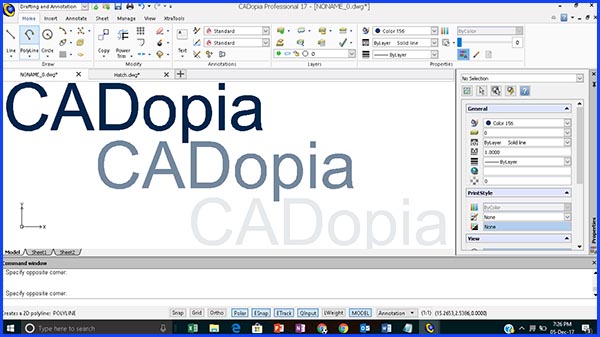
In the above figure, CADopia with no transparency (CEtransparency value = 0), medium transparency (CEtransparency value = 45) and maximum transparency (CEtransparency value = 90) are shown.
You can adjust the transparency value in the property sheet, as shown by a value of 45 below.

The transparency can be set by layer also. Once you set the transparency value of a layer, any new entity created on that layer will have the transparency value set for the layer. You can override it by changing the value of the transparency property from bylayer to byblock or some numerical value.

You can control the transparency of hatch patterns. Sometimes the hatch patterns are too dark, by increasing the transparency you can make them lighter.

Click on additional options in the Hatch/Fill dialog box.

Set the transparency value of the hatch pattern bylayer , byblock or by specifying a numerical value using the slider. You can also set it by modifying the transparency value for the hatch in the Property Sheet or by typing in a value for HPtransparency between 0 and 90.

The below figure shows the hatch pattern with a transparency value of 45 (medium transparency).
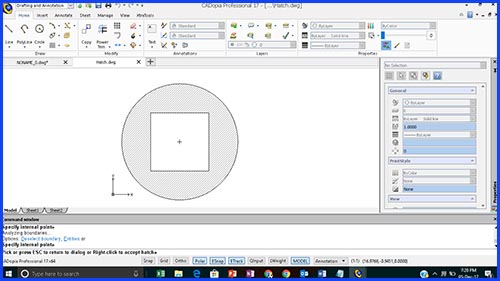
The same hatch pattern with a value of 90 (maximum transparency) and 0 (no transparency) are shown below.
(Maximum transparency)

(No transparency)